 TingMail
Listen to your Gmail.
Keep your eyes on life.
TingMail reads your important email aloud in natural Chinese and English voices, skips the junk, and lets you reply by voice — while you drive, cook, walk or commute.
Email you can hear,
and handle without looking.
Scroll through ten things TingMail does on your iPhone. Every screen below is the real app, shown with demo data.
Reads your email aloud
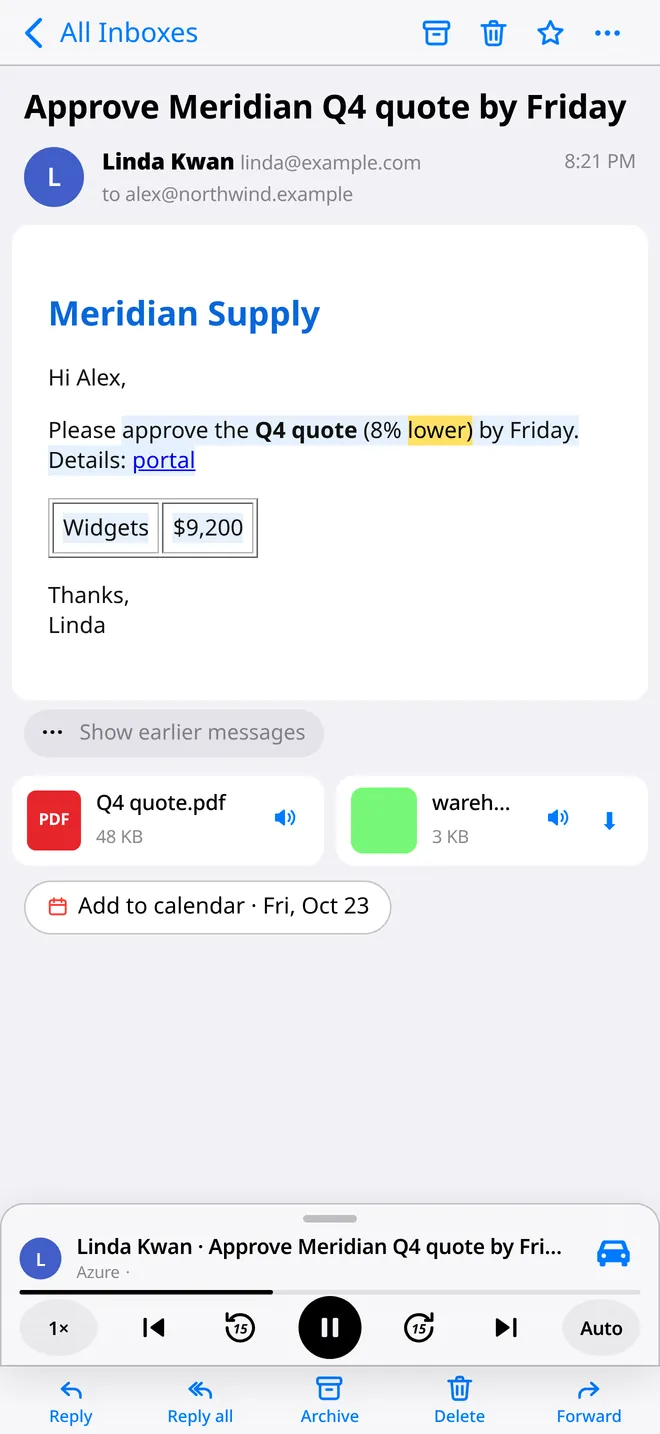
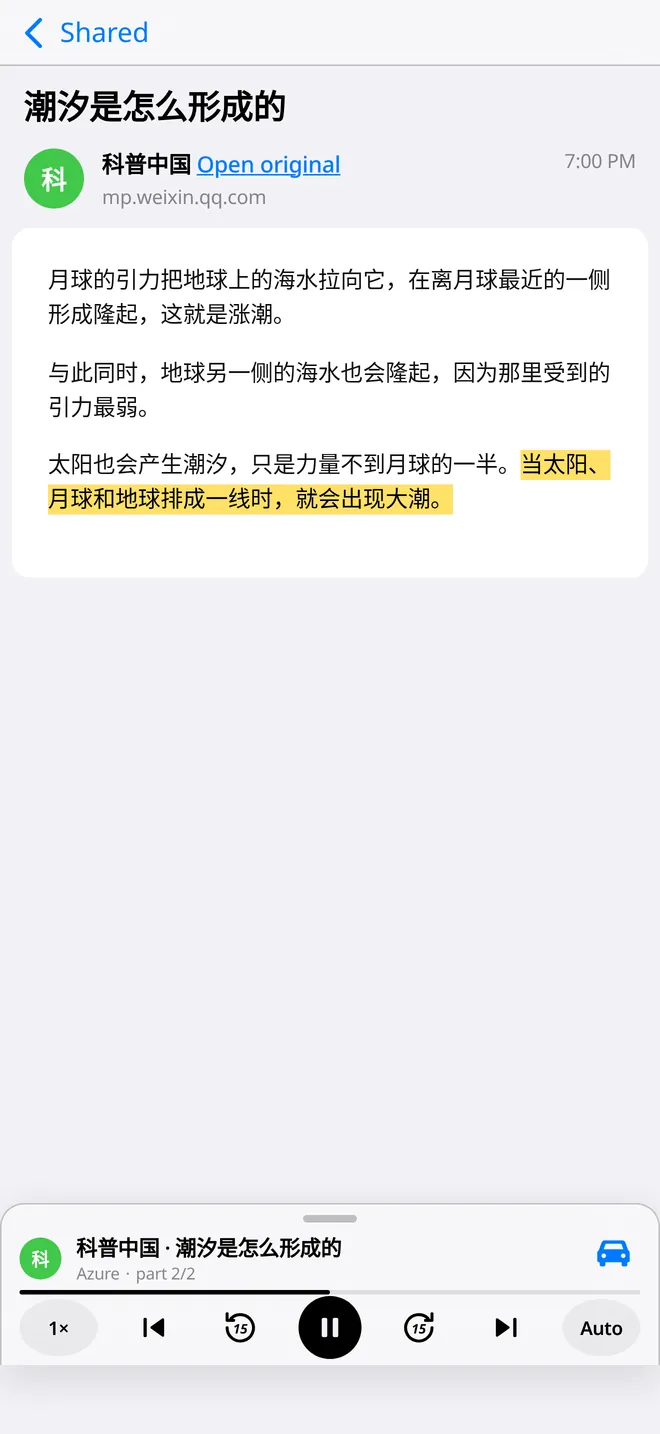
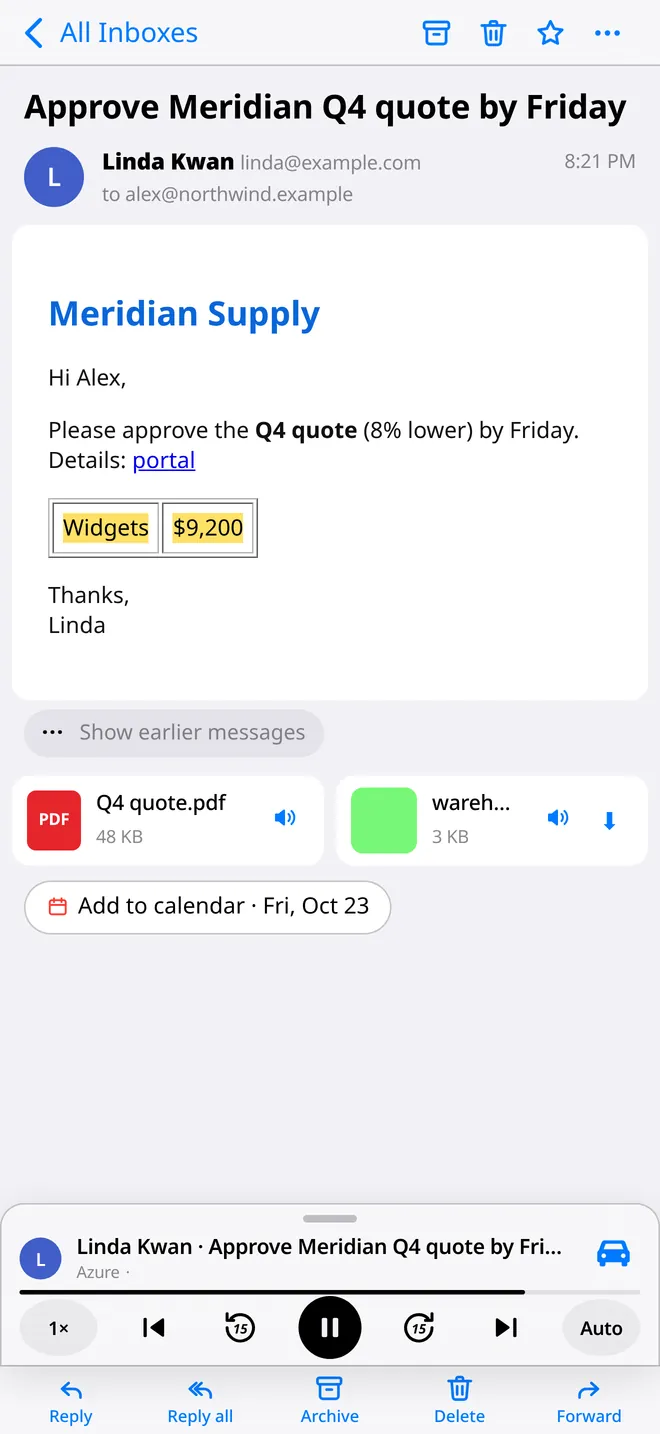
Natural Azure neural voices read each message, and switch automatically between English and Chinese — even inside one email. The current words are highlighted, and you can tap any line to jump there.
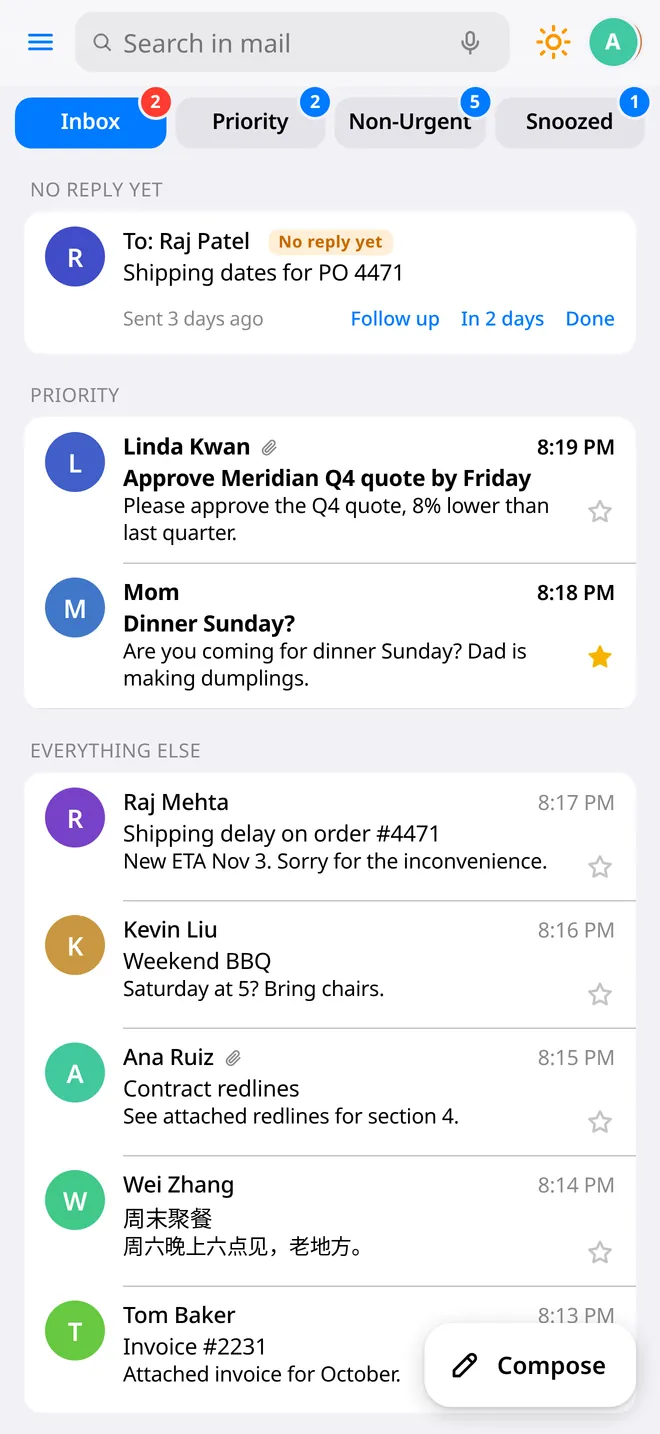
Priority, without the junk
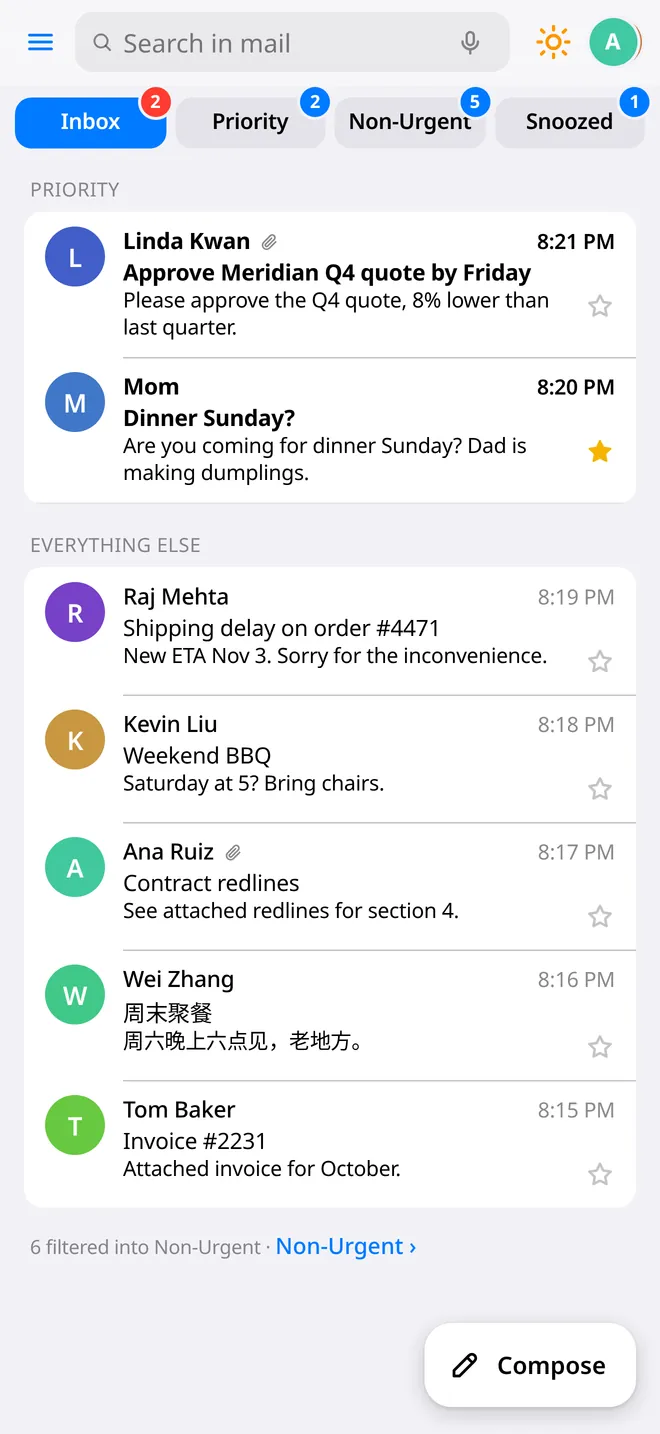
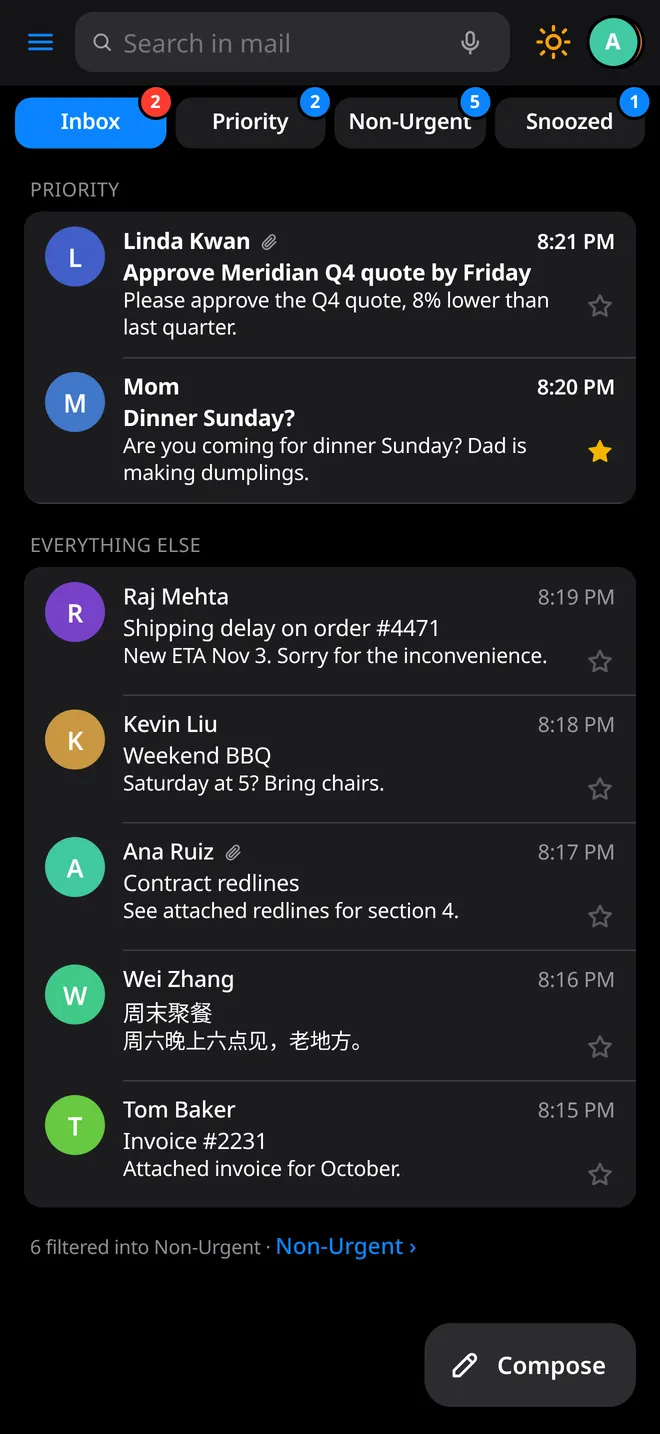
TingMail sorts out marketing and automated mail, so Priority holds the email from real people that needs you. Everything else waits in Non-Urgent.
A Briefing, not a backlog
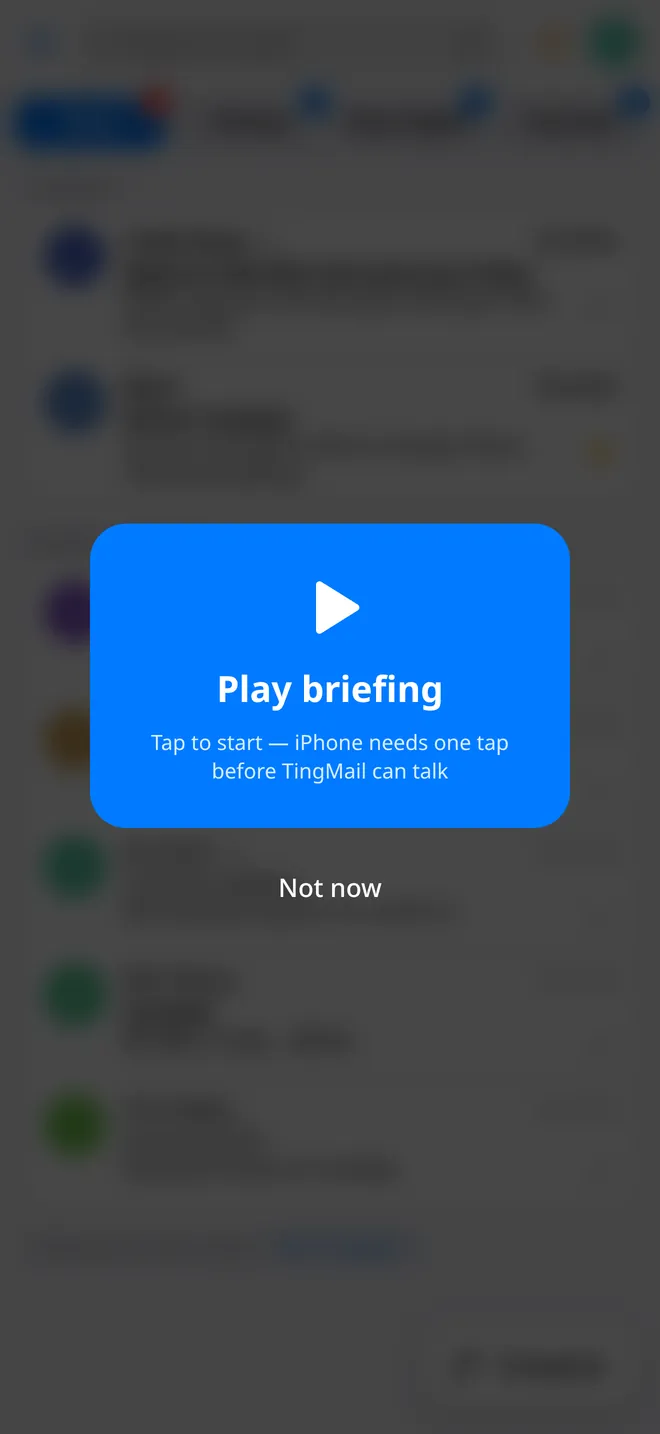
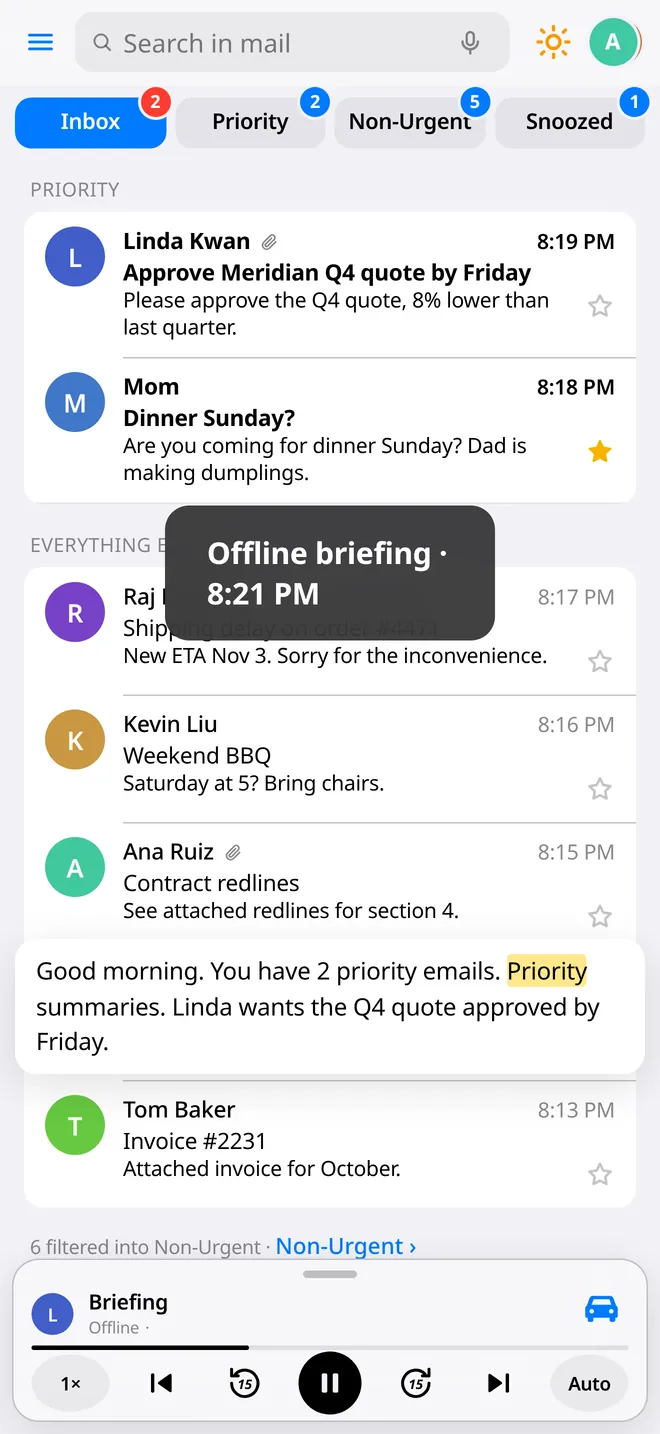
Hear who wrote and a short AI summary of what they want, then decide: read it in full or skip to the next. Start it from Siri, the Action Button or a Shortcut.
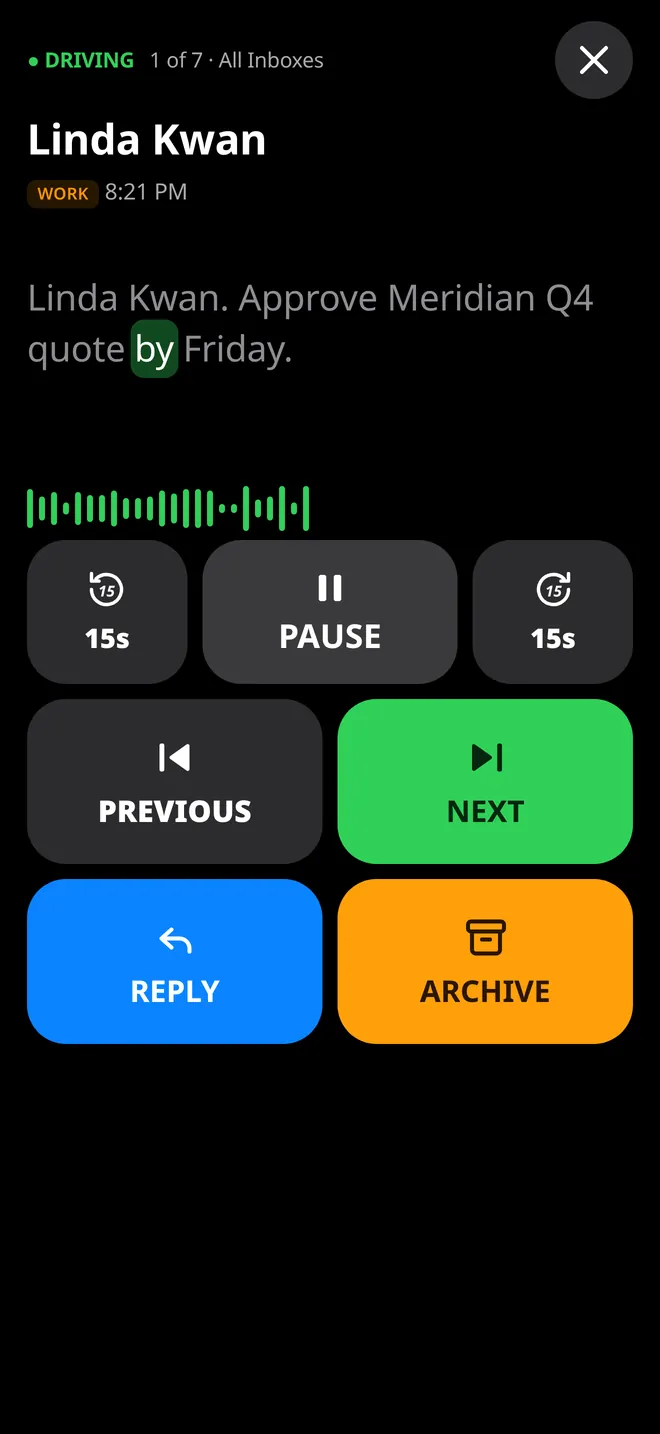
Drive Mode
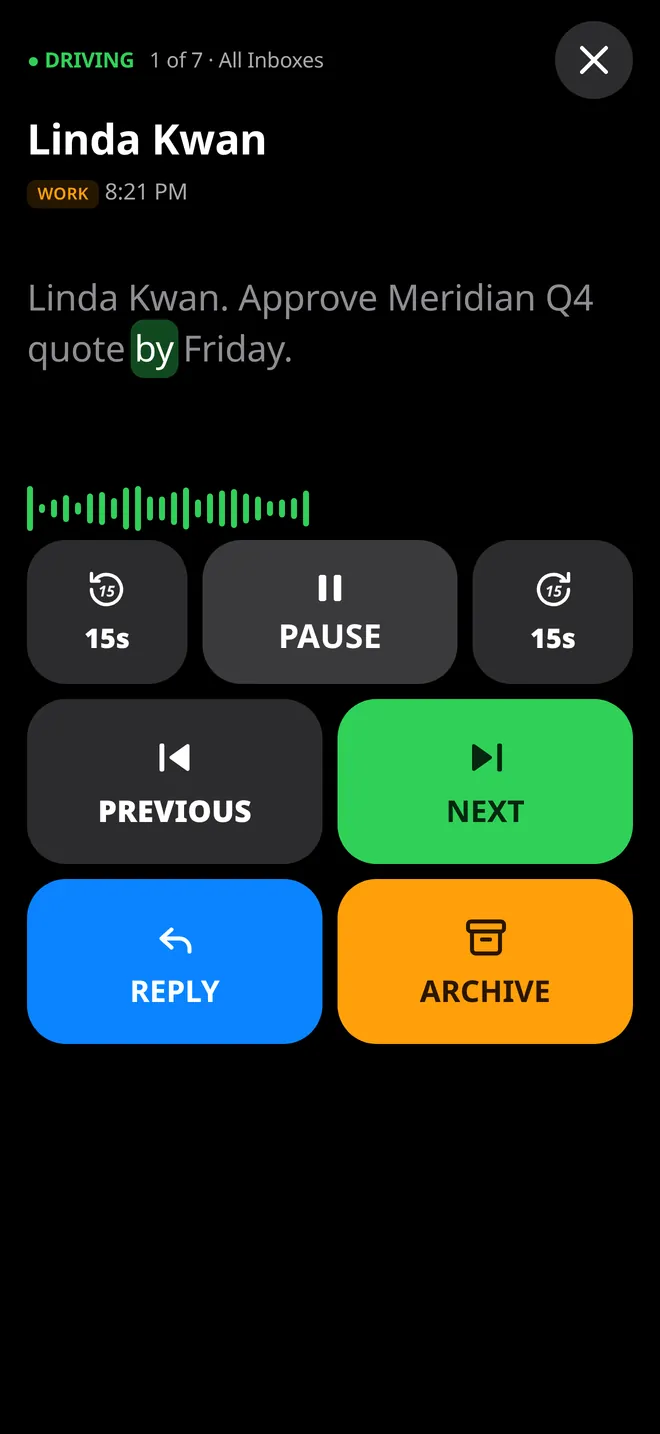
A dark screen with huge buttons and a teleprompter of what's being read. Pause, go back 15 seconds, next, reply or archive — easy to hit without looking closely.
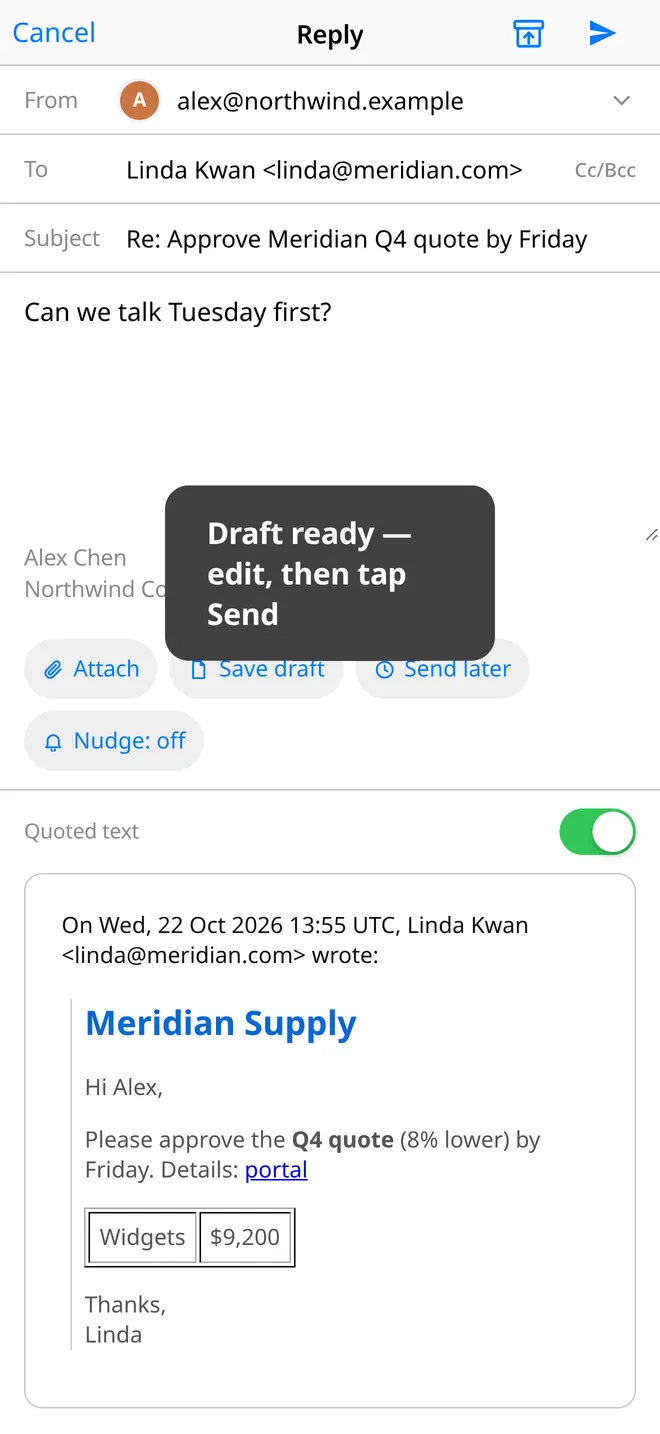
Reply by voice, safely
Dictate a reply and it lands as an editable draft. AI reply suggestions are one tap away, and they open a draft too. TingMail never sends without your tap — and you get an undo window after you do.
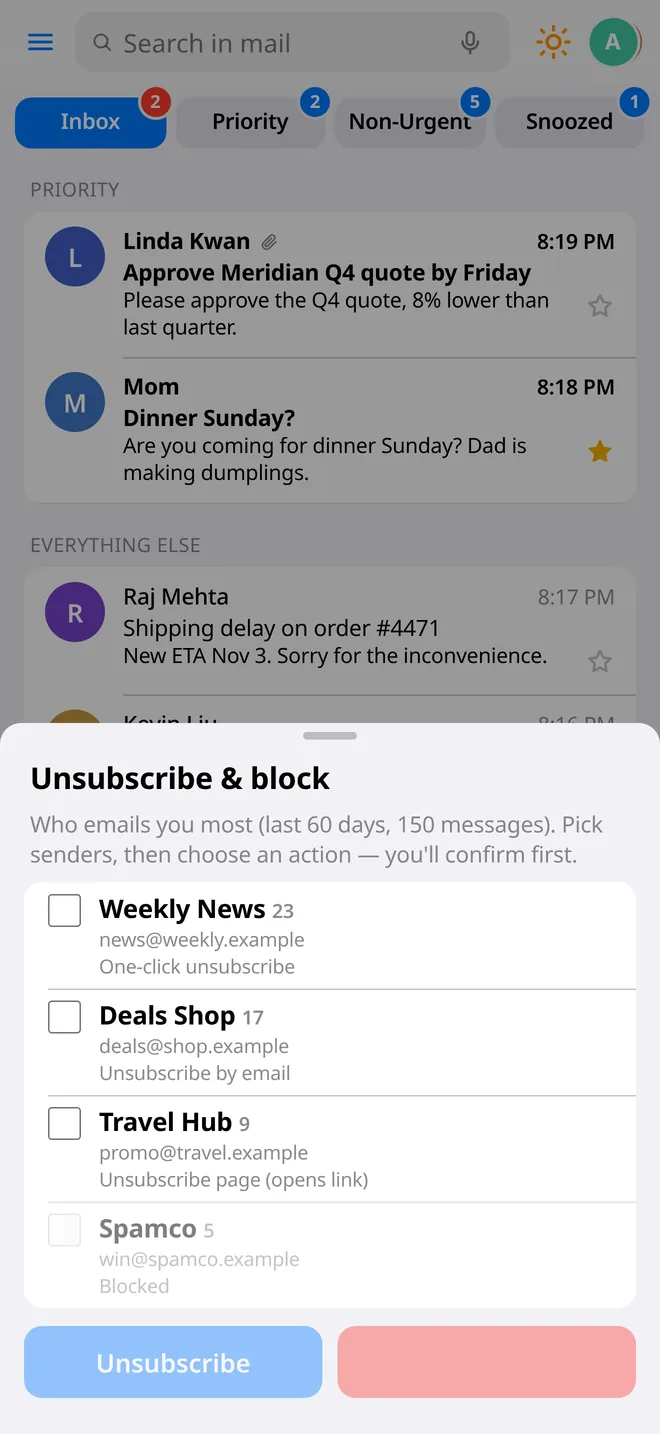
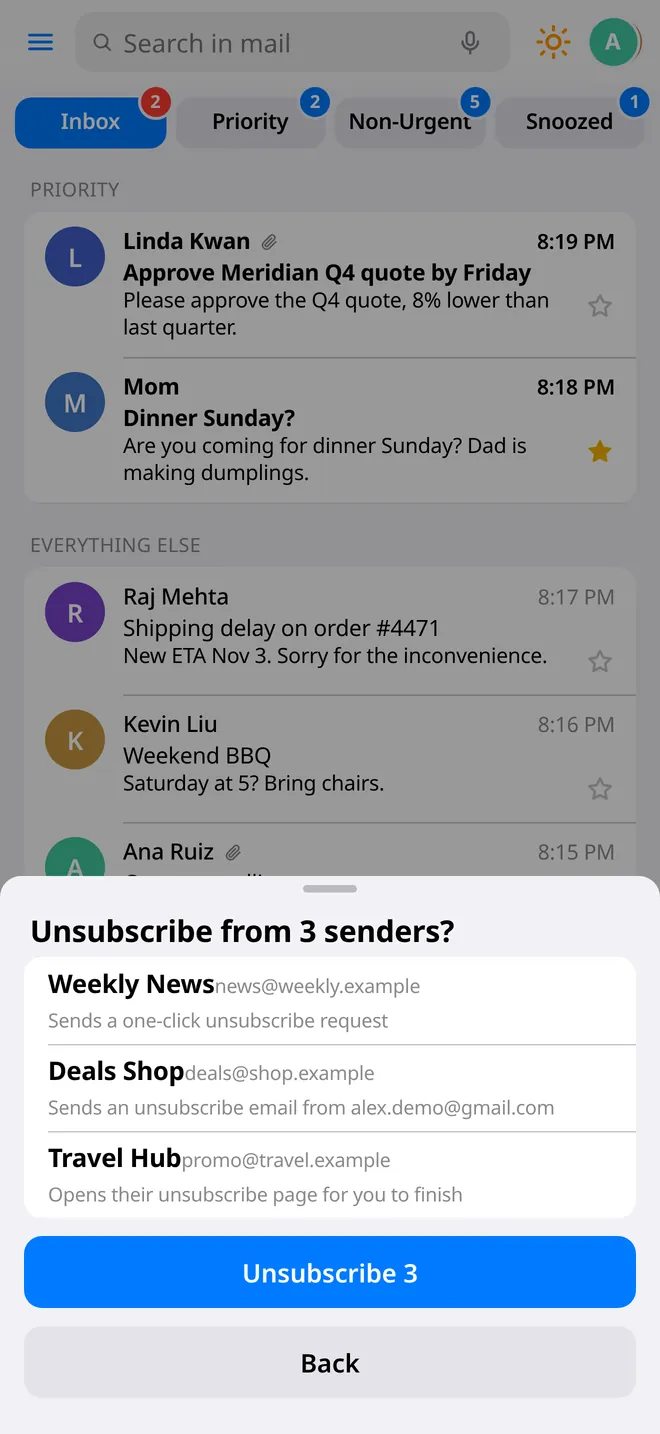
Unsubscribe & block
See who emails you most, tick them, and unsubscribe in one tap. Block sends all future mail from a sender to the trash — more reliable than hoping an unsubscribe link works.
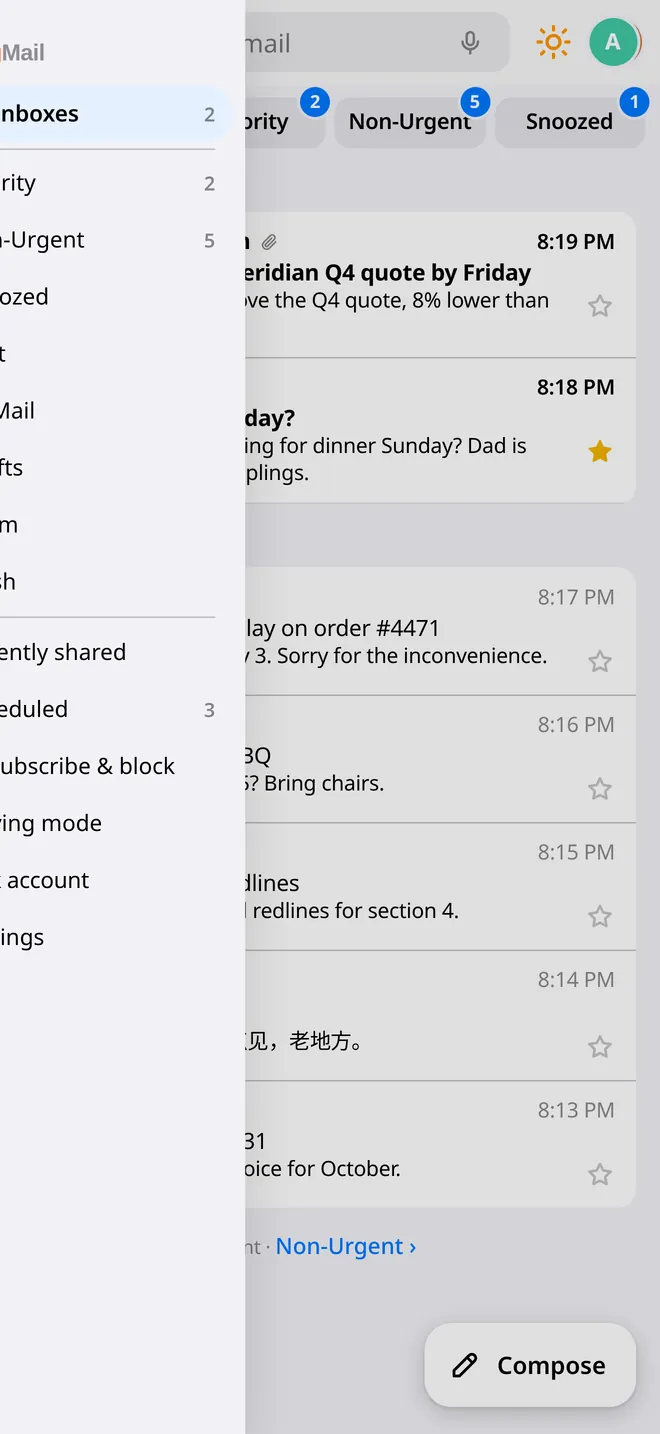
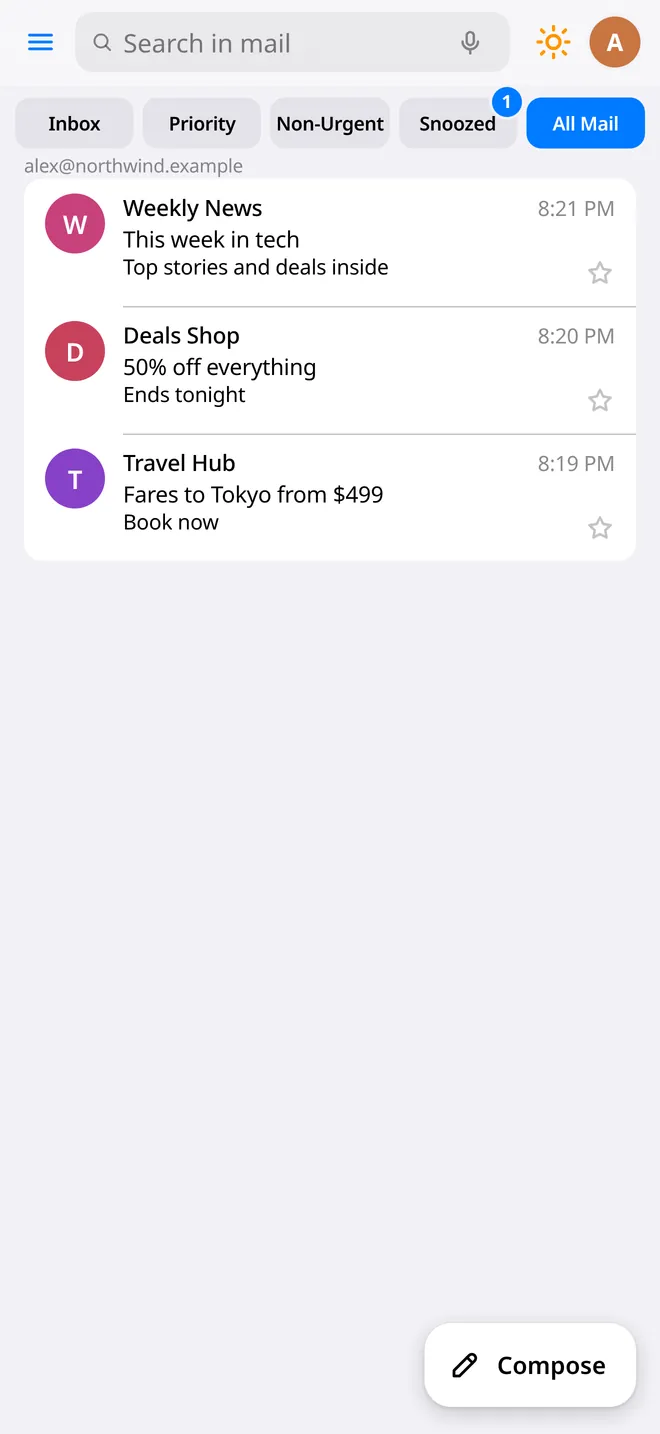
All your Gmail accounts
Link work and personal Gmail. Each account gets its own colored profile icon, and All Inboxes reads them together.
Follow-up nudges & send later
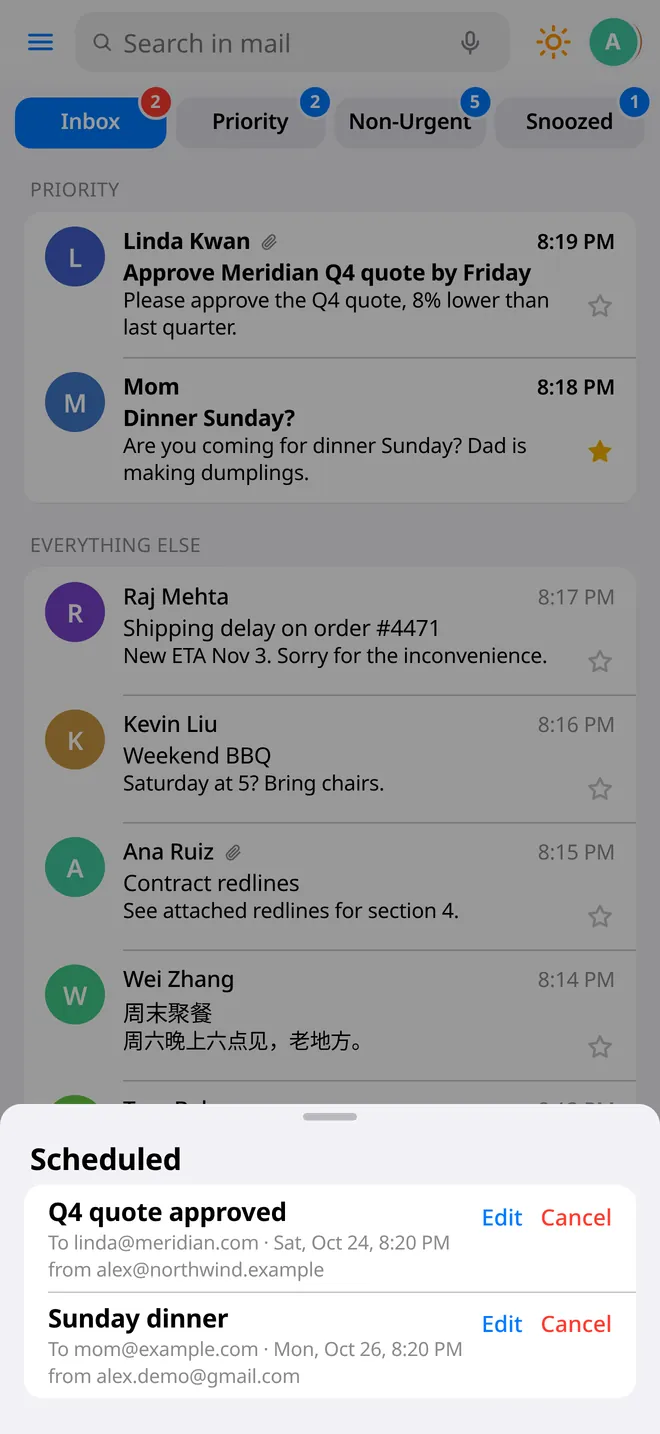
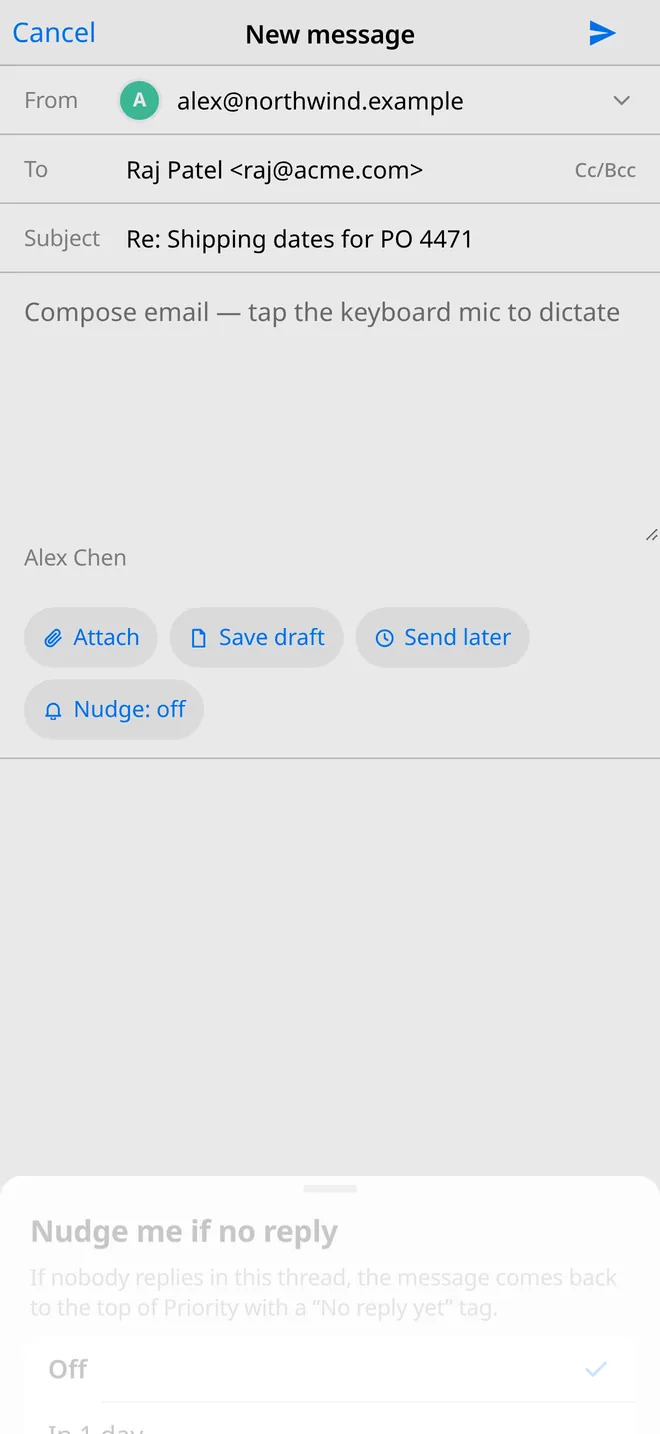
Ask TingMail to nudge you if nobody replies. Schedule a message to go out later, and see it under Scheduled where you can edit or cancel it.
Add to calendar
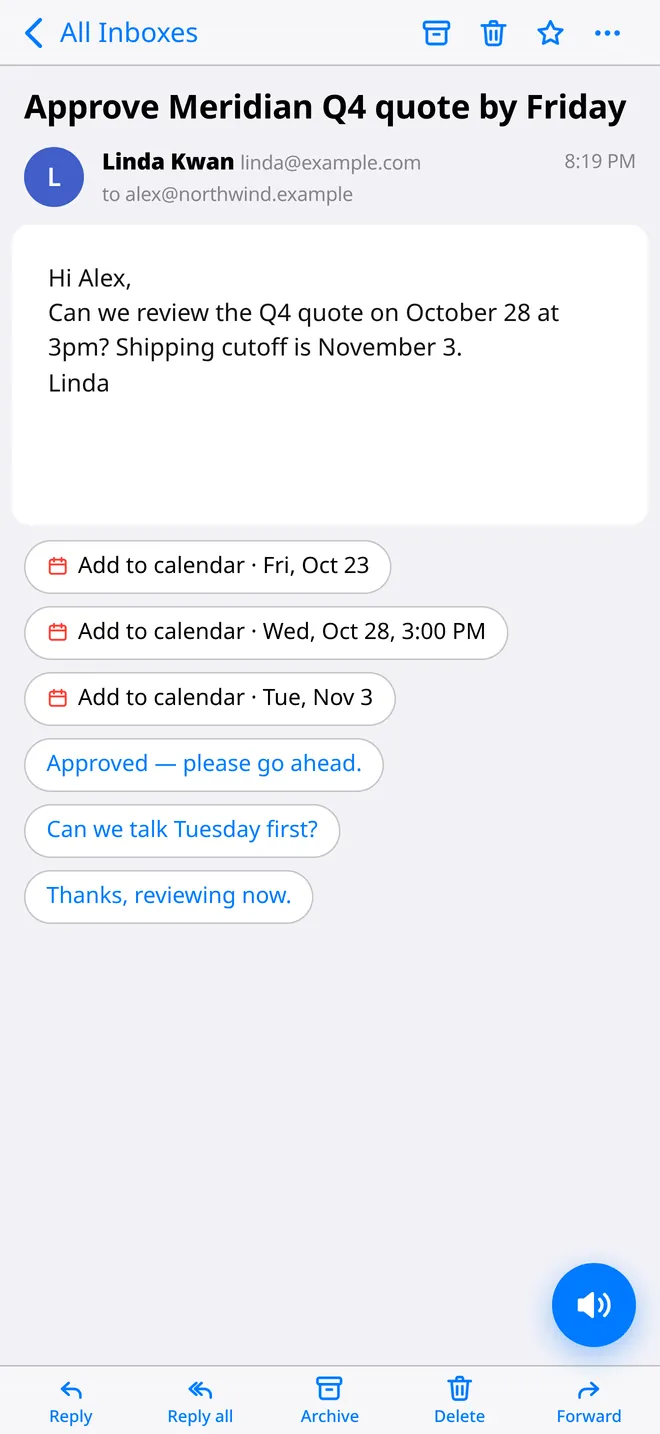
Dates and times found in a message turn into chips. Tap one to add it to Google Calendar or save an .ics file.
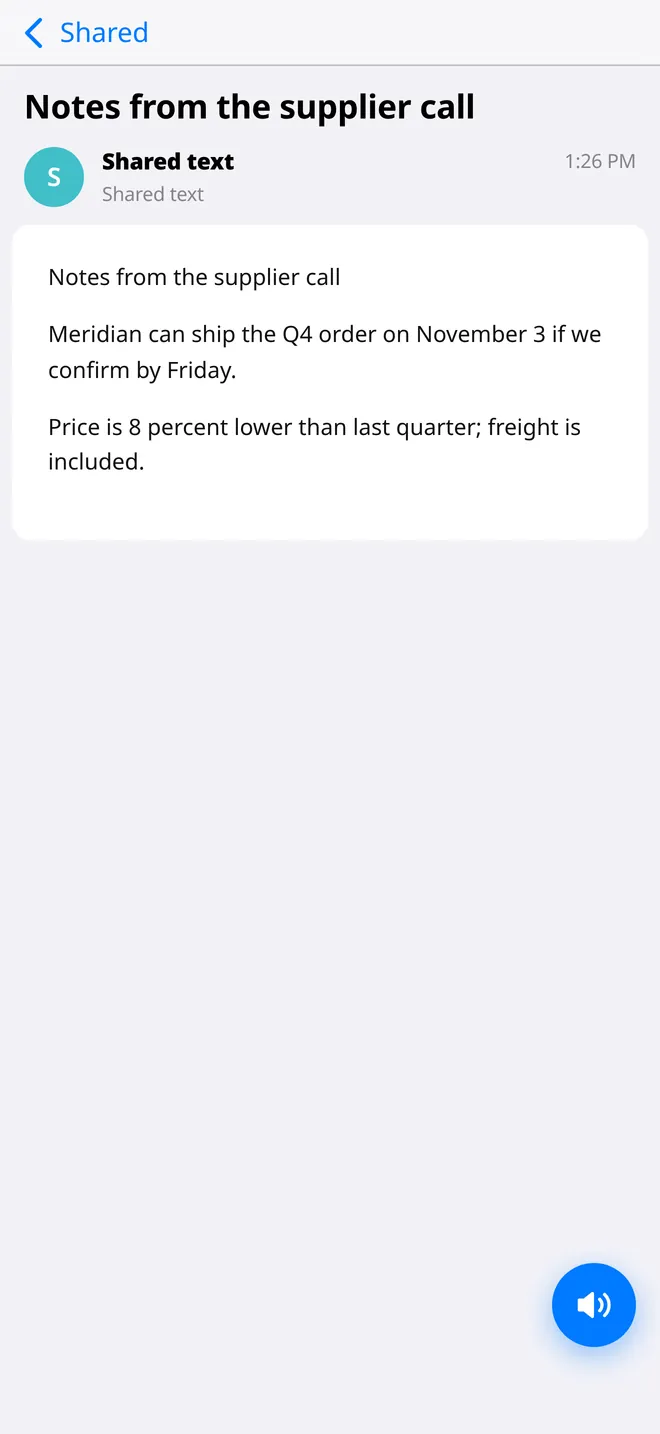
Read anything in TingMail
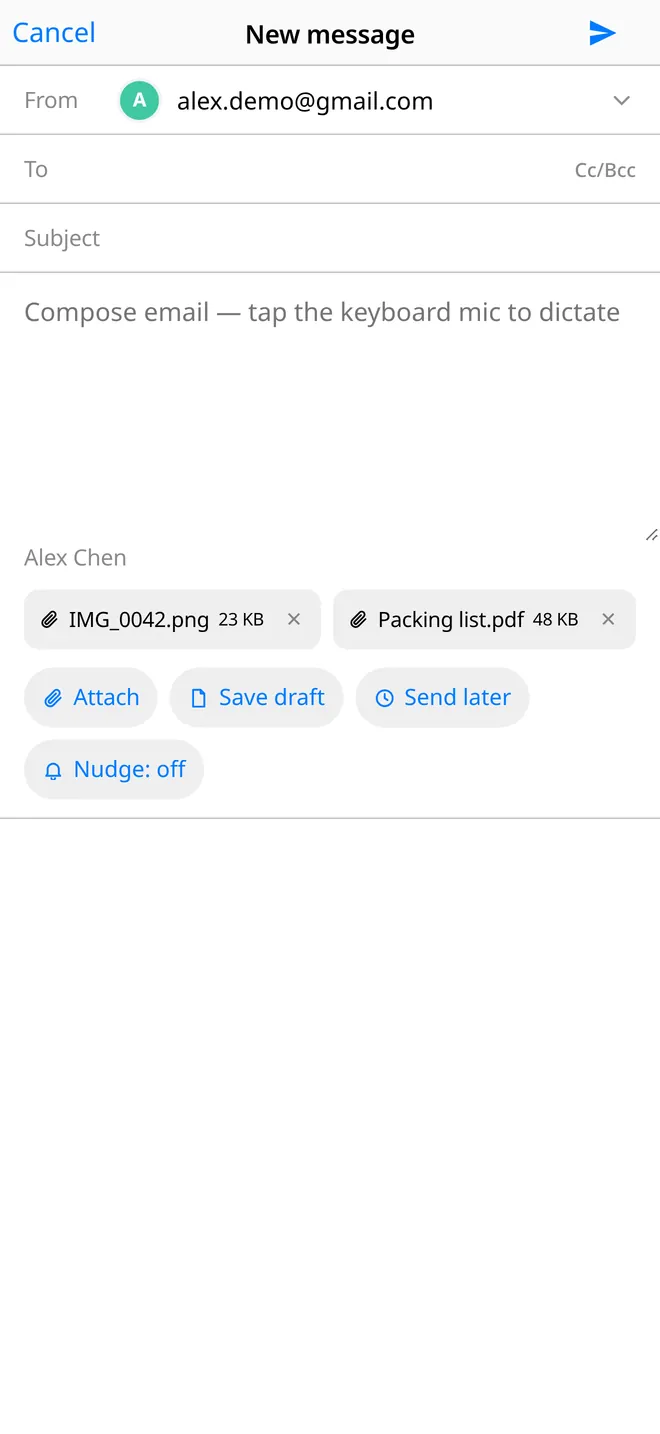
“Read in TingMail” in the Share menu reads any web page or text aloud, in Chinese or English. “Email with TingMail” attaches photos and files to a new email.

See TingMail in action.
The problem, how people use it in the car and the kitchen, every feature, and how it compares — in about five minutes.
Draft narration uses a stand-in synthetic voice. Captions available.
Email wants your eyes.
Your day needs them more.
Most of the inbox is noise, and the email that matters arrives while your hands and eyes are busy.

Inbox overload
Newsletters, receipts and promotions bury the few messages from real people. TingMail pulls those few into Priority and summarizes them.

Eyes-busy time
Driving, cooking, walking the dog. You can listen, but you shouldn't be reading. TingMail turns that time into inbox time.

Junk that never stops
Unsubscribe links often don't stick. Block sends a sender's future mail straight to the trash, and the bulk screen clears dozens at once.


Built for listening first.
A voice that sounds like a person, in two languages
TingMail uses Azure neural voices and detects Chinese and English line by line, so a bilingual email is read the way you'd read it. Speed is adjustable, and the full audio panel lets you jump back 15 seconds or tap any line to continue from there.
- Lock Screen and Control Center controls with the sender and subject
- AirPods and car buttons: play, pause, next, previous
- Light and dark themes, large text sizes
Hear what matters, skip the rest
Priority leaves out marketing and automated mail. The Briefing reads the sender and a short AI summary of each message; you choose to hear it in full or skip ahead.
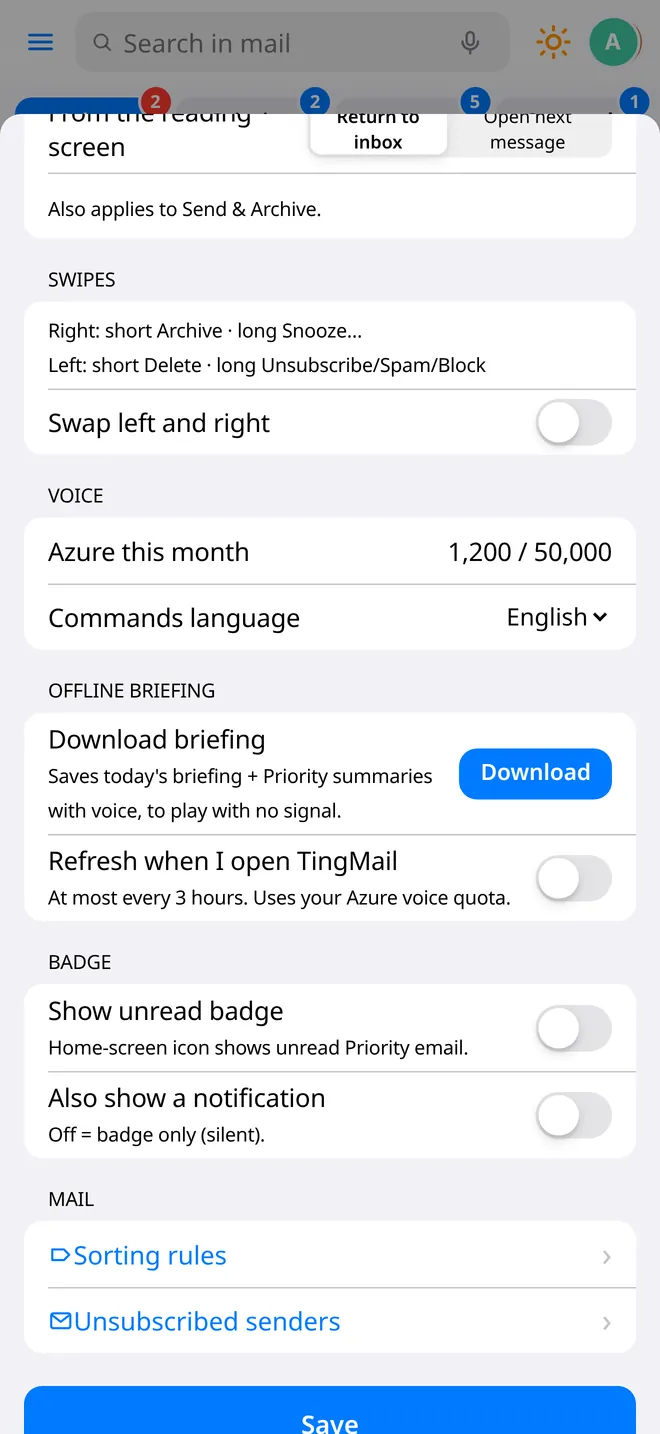
- Start a Briefing from Siri, the Action Button, or a Shortcut link
- Offline Briefing: download it before you lose signal
- Snoozed, Sent, All Mail, Drafts and Spam are all there too
Big buttons. Dark screen. Eyes up.
Drive Mode shows a teleprompter of what's being read and six large buttons: back 15s, play/pause, forward 15s, previous, next, reply and archive. It works with your car's steering-wheel controls through the standard iPhone media controls.
- Archive or move on with one large tap
- Replies become drafts you can finish later — nothing is sent automatically
Always follow local laws and keep your attention on the road.
Dictate, review, then send
Speak your reply with the iPhone keyboard's mic and it appears as an editable draft. Suggested replies appear as chips under a message; tapping one opens a draft rather than sending.
- Undo send for a few seconds after you tap Send
- Send later: pick a time, then edit or cancel it under Scheduled
- Nudge me if no reply — follow up, later or done
Archive, delete, unsubscribe, block
Every message has archive and delete. For senders you never want to hear from, one-tap unsubscribe uses the sender's own unsubscribe method, and Block trashes all of their future mail automatically.
- The Unsubscribe & block screen lists your noisiest senders from recent mail
- Tick several, confirm once; anything that can't finish automatically gets a link
Work and personal, together
Link more than one Gmail account. Each gets a colored profile icon so you always know which inbox a message came from, and All Inboxes lets you hear everything in one pass.
- Switch to one account or see all of them
- Per-account signatures
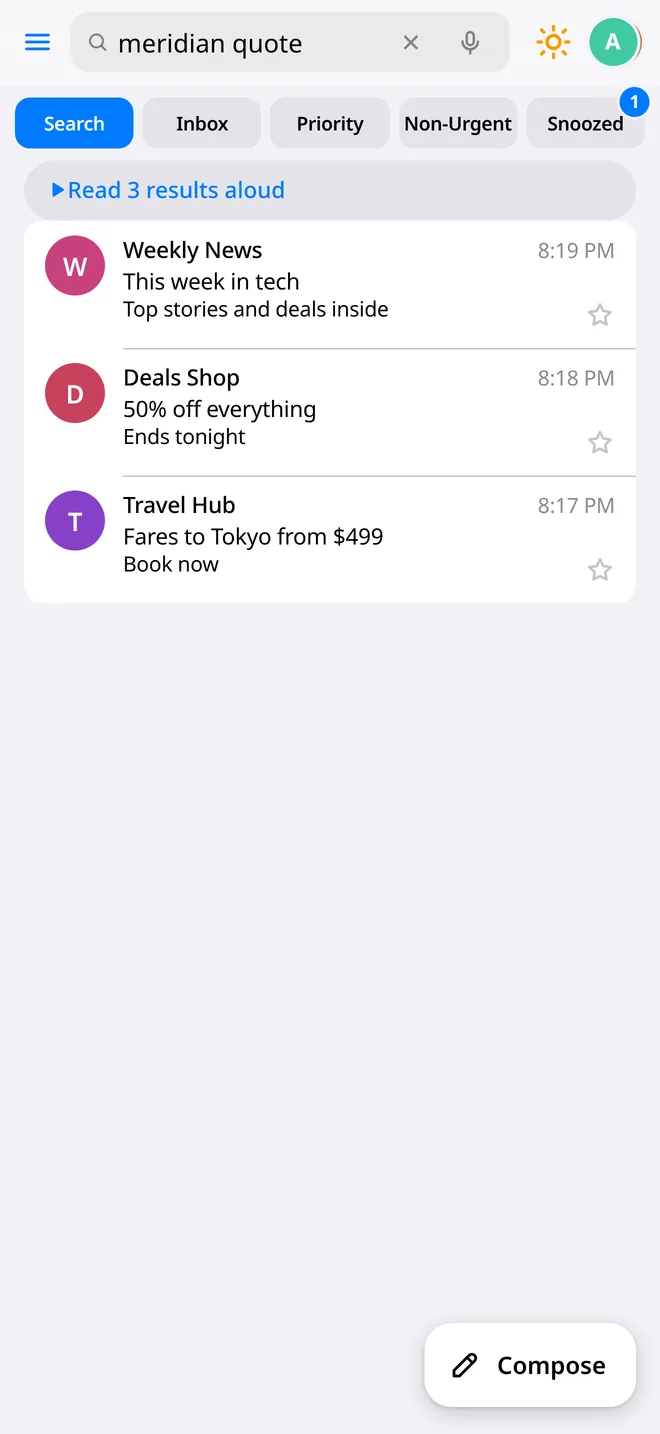
Ask for it, hear the results
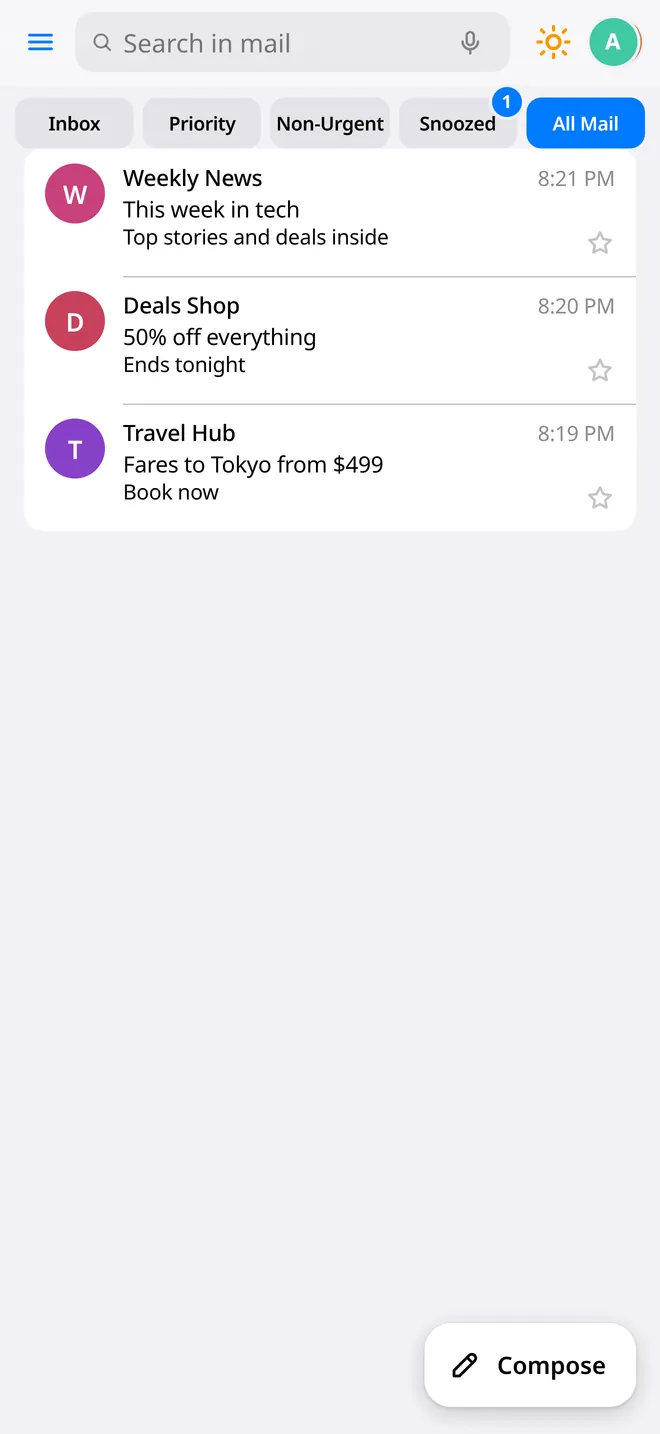
Tap the mic in search and say what you're looking for; “Read results” reads the matches aloud. Dates and times inside a message become Add to calendar chips.
Read in TingMail · Email with TingMail
Two iPhone Shortcuts add TingMail to the Share menu. “Read in TingMail” reads any article or selected text aloud. “Email with TingMail” starts a new email with your photos or files attached.
- A companion Safari reader script reads articles aloud with word highlighting
- Recently shared items are one tap away in the menu
Other mail apps are built for reading.
TingMail is built for listening.
An honest look at where TingMail fits. Comparisons are by category, based on how these apps are generally designed; features change, so check each product for specifics.
| TingMail | Typical email apps | General read-aloud apps | |
|---|---|---|---|
| Main way you use it | Listening, hands-free | Reading and typing | Listening to documents |
| Reads your Gmail in a natural neural voice | Built in | Usually via iOS Speak Screen | Usually by copying text in |
| Automatic Chinese ⇄ English switching | Yes, line by line | Rarely | Varies |
| Sender + short AI summary before you listen | Yes | Some offer AI summaries on screen | Not email-aware |
| Drive Mode with large buttons | Yes | Rarely | No |
| Voice replies land as drafts, never auto-sent | Always | Depends on the app | No email |
| Block sender → future mail to trash | Yes, plus bulk unsubscribe | Varies | No |
| Install | From Safari, no App Store | App Store | App Store |
Your mail stays yours.
TingMail is a small, self-run service, not an ad business.
Voice replies and AI suggestions are drafts. Sending, scheduling and unsubscribing only happen after you confirm, and Send has an undo window.
Gmail access runs through Google sign-in and a service in the developer's own Cloudflare account. Sign-in tokens are stored encrypted. No ads, and your mail isn't sold.
Text being read is sent to Microsoft Azure to make the voice; summaries and reply ideas use Cloudflare Workers AI in that same account. You can revoke access anytime from your Google Account.
Ready to listen?
TingMail is invite-only for now. Ask for an invite, then add it to your Home Screen in about a minute.
Request an invite
Send a quick email with the Gmail address you want to use.
Open tingmail.app in Safari
Sign in with Google and allow Gmail access.
Add to Home Screen
Share → Add to Home Screen. It opens full-screen, like an app.